#What do you need to compile Boost?
In order to compile and install the Boost library, you must:
- Download the boost library from official Boost website. You can download in your preferred format, e.g. zip file.
- Install Microsoft Visual Studio 2015, 2017 or 2019 (if not already installed).
#Why is important to check your Microsoft Visual studio version?
We have to build boost specifying which is the installed MS Visual Studio version, passing a specific parameter to the booststrap.bat script.
For MS Visual Studio 2019, this parameter is vc142. For the previous 2015 and 2017 versions, the parameter are vc140 and vc141 respectively.
Let’s build boost v1.75.0
- Extract all files in the zip file to the destination folder (e.g., c:boost). A new sub-folder will be created depending on the boost version (in this case, the sub-folder is named “boost_1_75_0”)
- Type “bootstrap vc142” (if you have installed MS Visual Studio 2019)
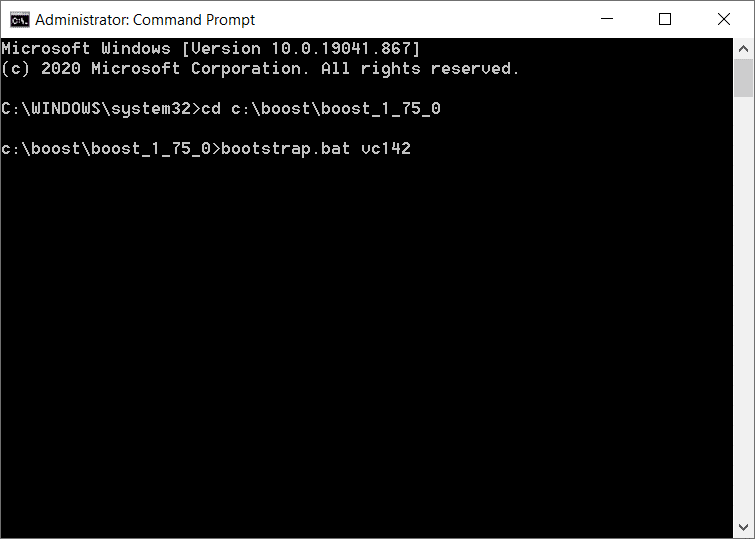 Now, we are ready to build using “.b2” command
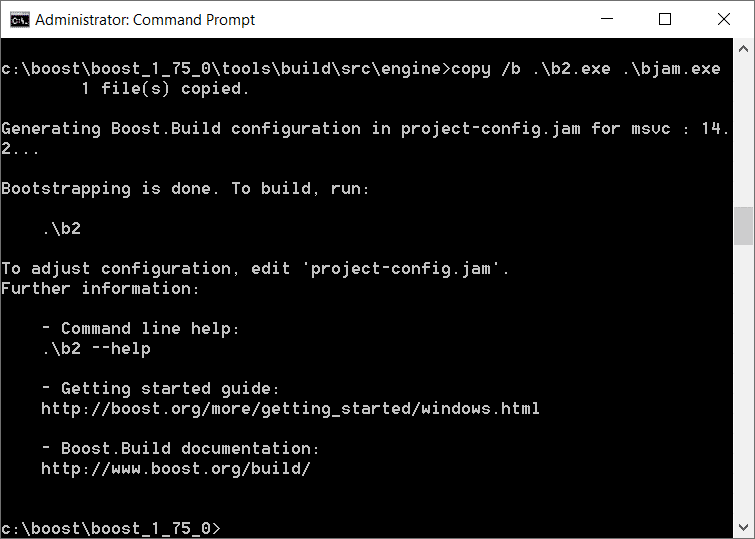 To build boost, type “.b2”
 Patience… it’s building.. I suggest to watch a movie 🙂
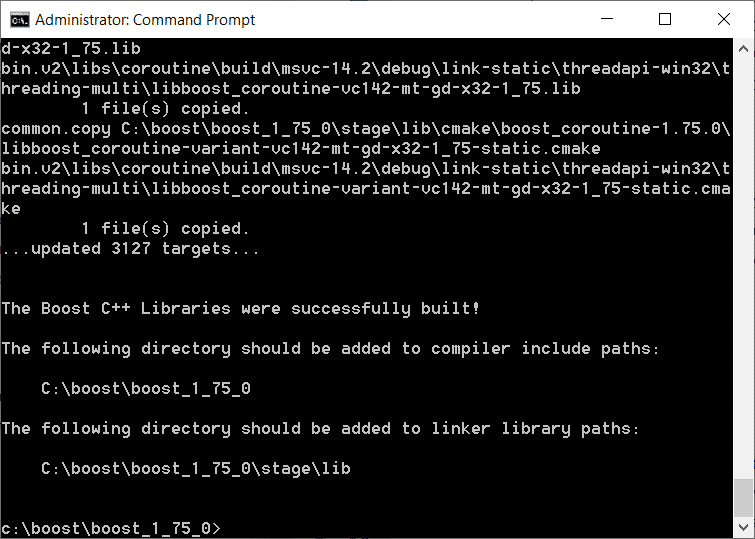
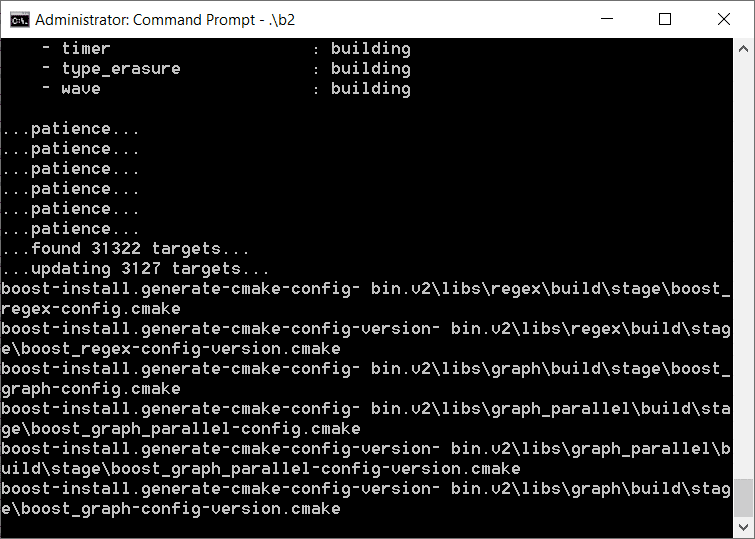 Boost C++ Libraries are successfully built!
#How to use boost with Visual Studio?
- Add the folder “c:\boost\boost_1_75_0” to the compiler include paths
- Add the folder “c:\boost\boost_1_75_0\stage\lib” to the linker library paths
#Let’s test a basic example…
This code will produce a simple check failure for the test:
#define BOOST_TEST_ALTERNATIVE_INIT_API
#include <boost/test/included/unit_test.hpp>
#include <iostream>
BOOST_AUTO_TEST_CASE(test1)
{
    BOOST_TEST(false);
}
bool init_unit_test()
{
    std::cout << "using custom init" << std::endl;
    return true;
}
The console output will be:
using custom init
Running 1 test case...
C:/Users/UserPc/source/repos/FirstBoostTest/FirstBoostTest/FirstBoostTest.cpp(7): error: in "test1": check false has failed
*** 1 failure is detected in the test module "Master Test Suite"
As you have seen, the process to build and install boost 32-bit is not difficult. At each step, the instructions on how-to proceed are suggested.
#Install boost binaries only
If you are not interested building boost but just to install boost, then you can simply download them from SourceForge. You can download boost binaries for all Microsoft Visual Studio versions or for a specific one.
If you have any question or you would like to contribute to this basic tutorial, feel free add your comment below.